
Monitors / Publish a status page
Publish a status page
Share the health of your services on public pages, grouped and ordered as you like.
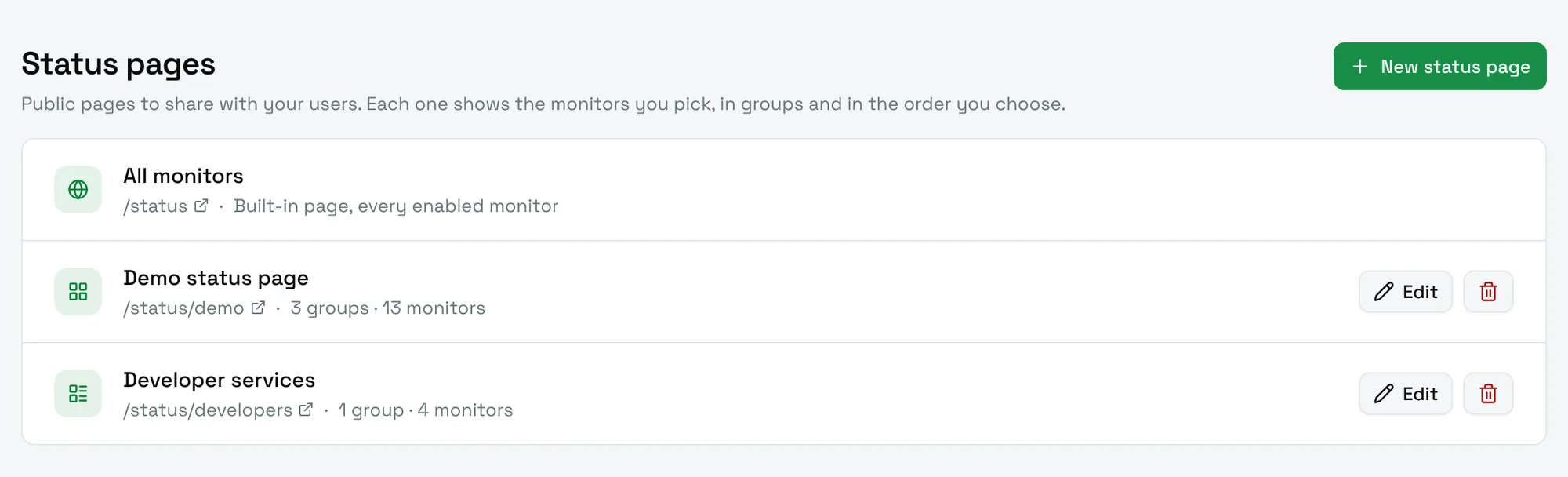
A status page shows the health of a selection of monitors to anyone with the link, without sign-in. Open Status pages in the sidebar to manage them.
The built-in page
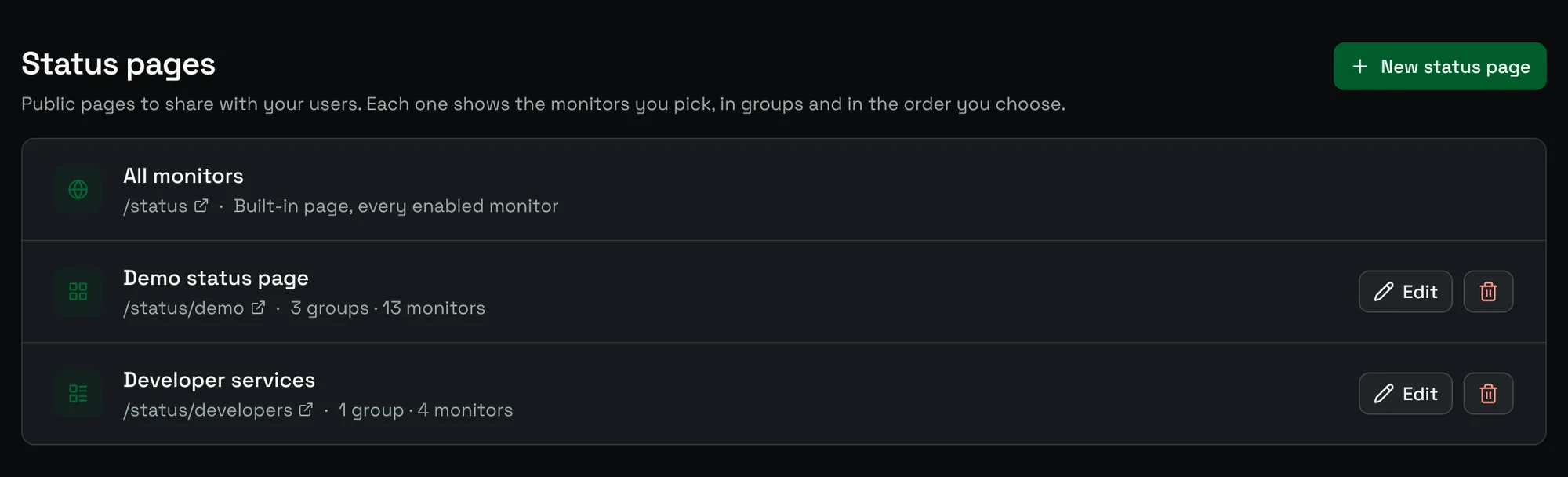
Every instance has a page at /status that lists every enabled monitor. It needs no setup.
Create a custom page
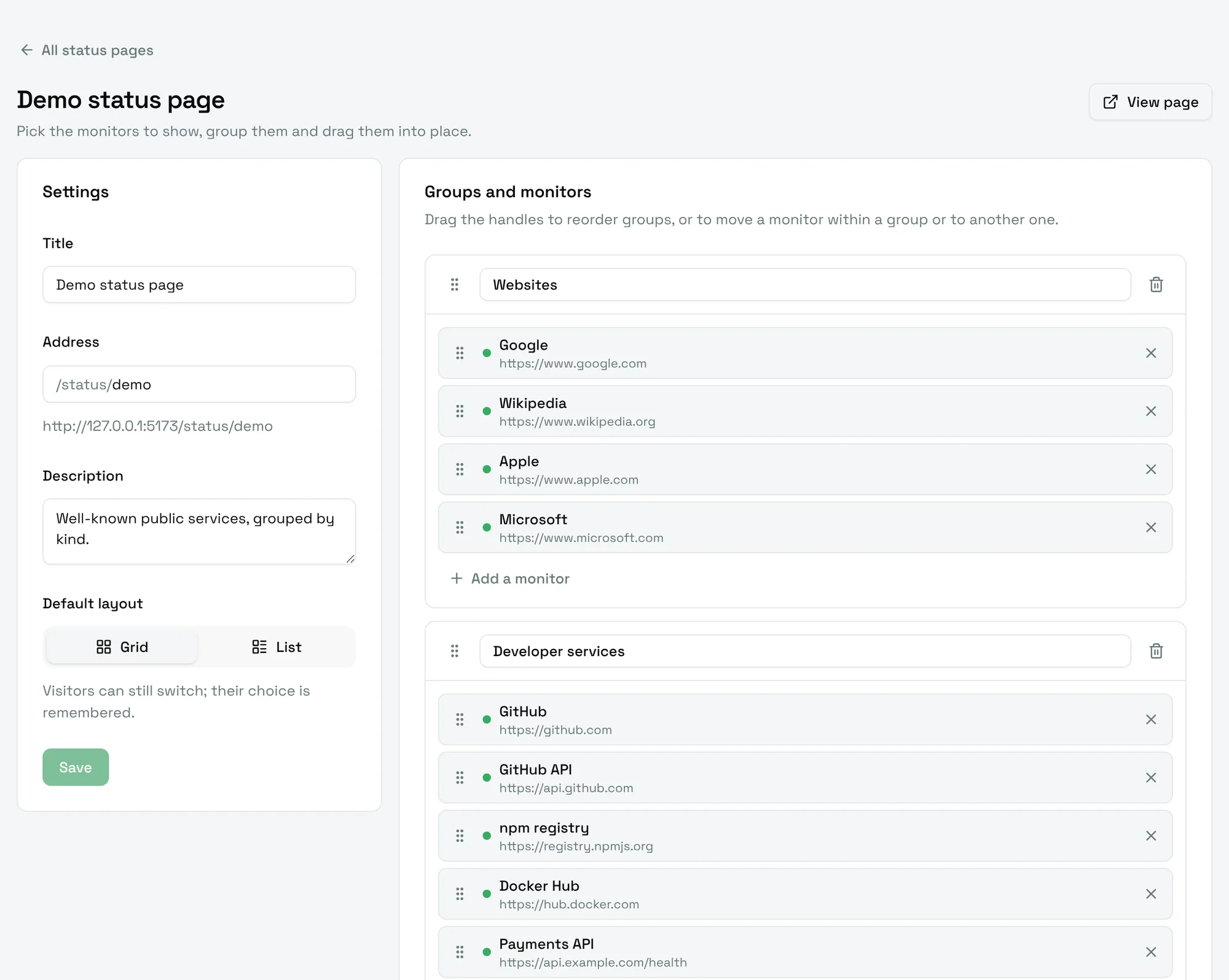
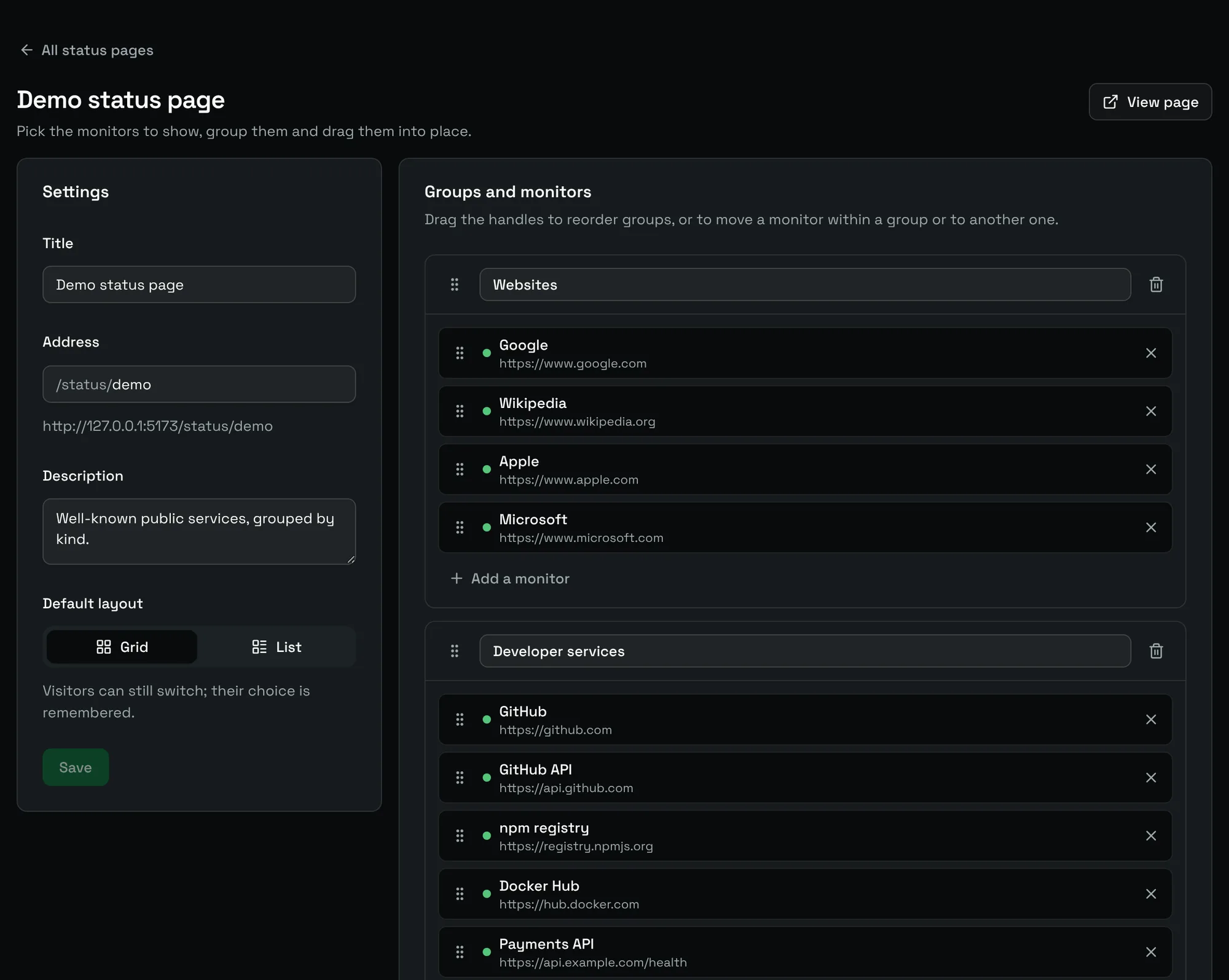
Choose New status page, then fill in the Settings card:
- Title: shown at the top of the page.
- Address: the public address, under
/status/. Lower-case letters, digits and dashes, for examplemy-companyfor/status/my-company. - Description: shown under the title.
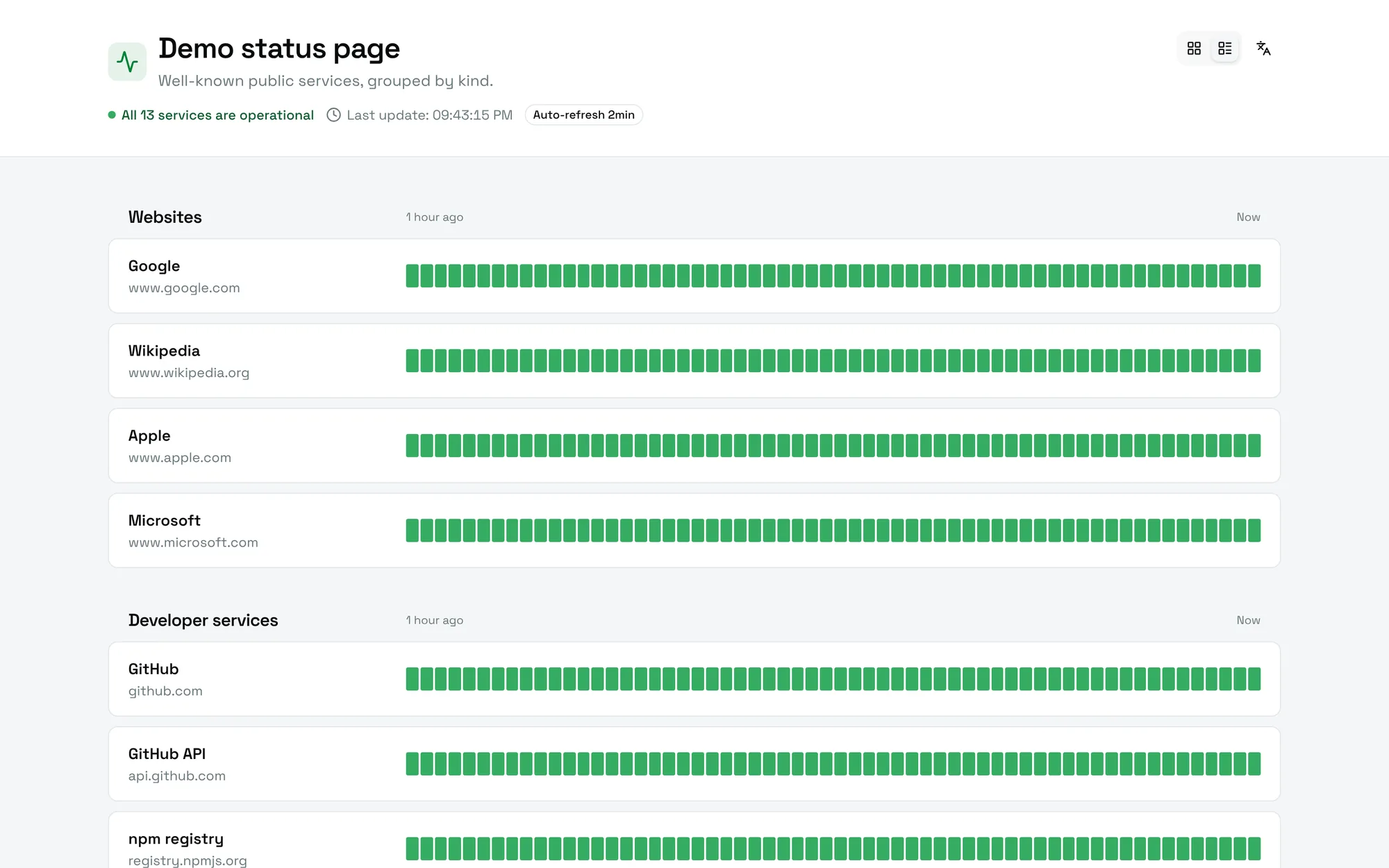
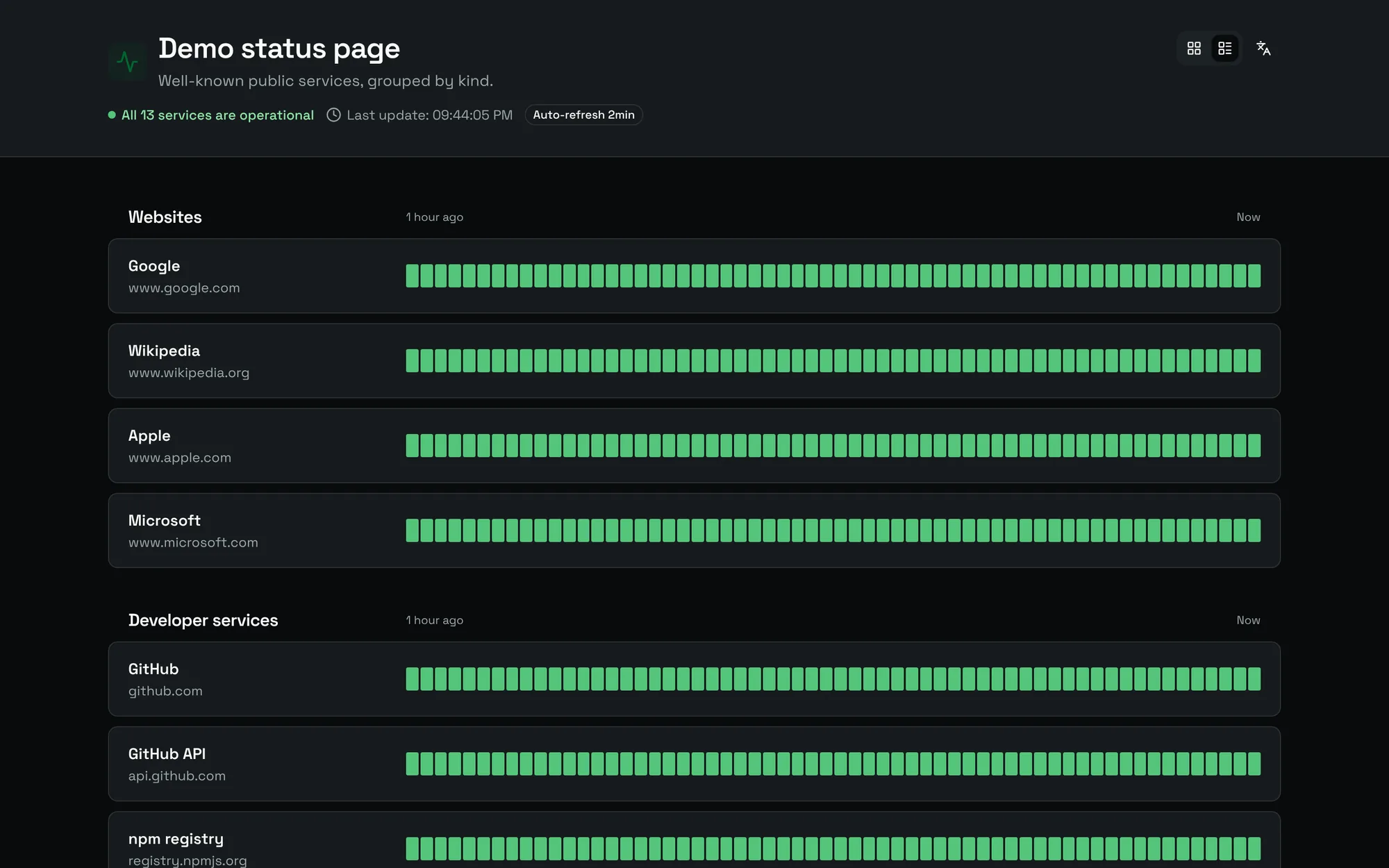
- Default layout: Grid or List. Visitors can still switch, and their choice is remembered.
Organize groups and monitors
In Groups and monitors:
- Choose Add a group and give it a name, for example
WebsitesorNetwork. - In each group, choose Add a monitor and search for the monitor to show.
- Drag the handles to reorder groups, or to move a monitor within a group or to another one.
Choose Save, then View page to open the public page.
What visitors see
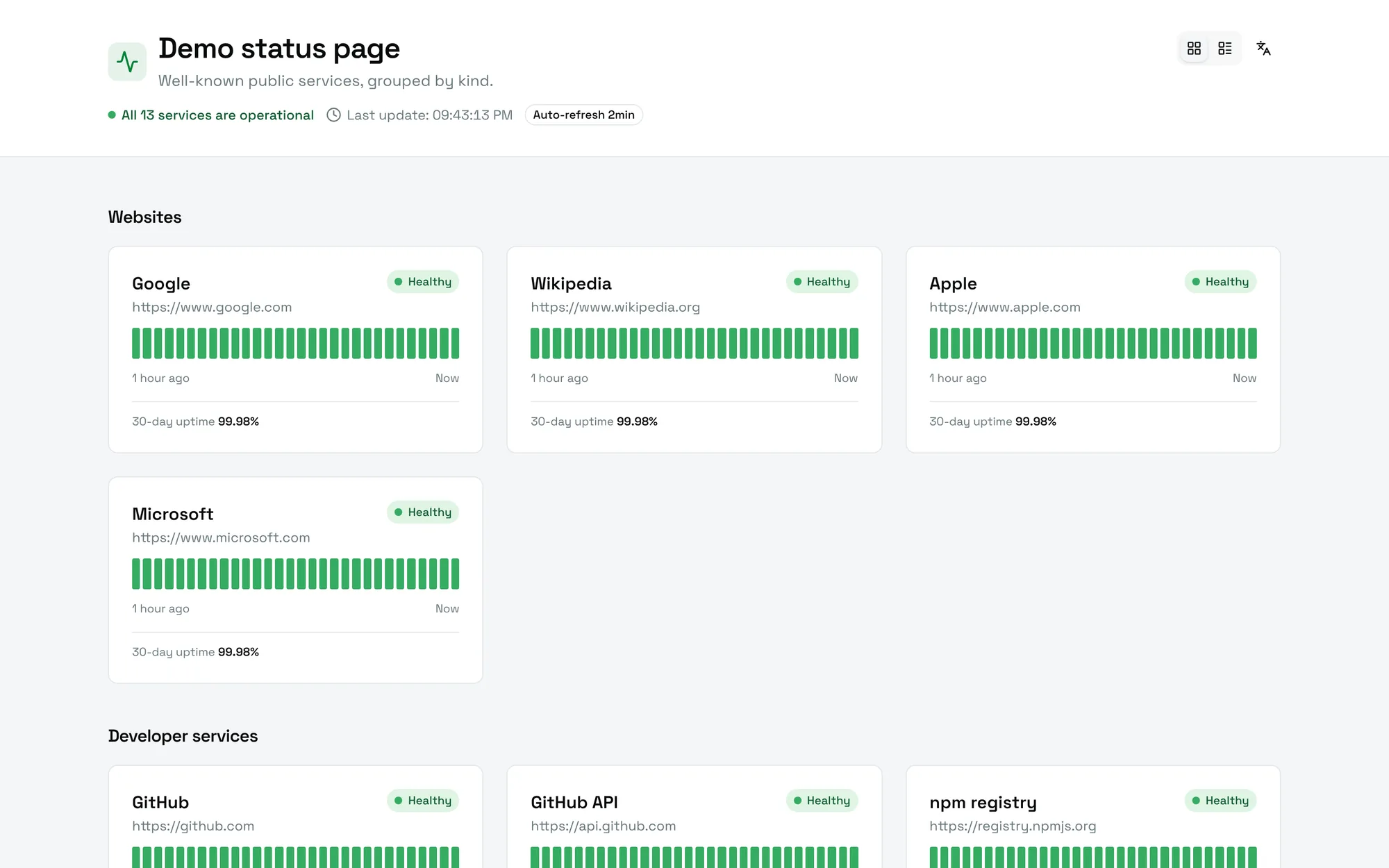
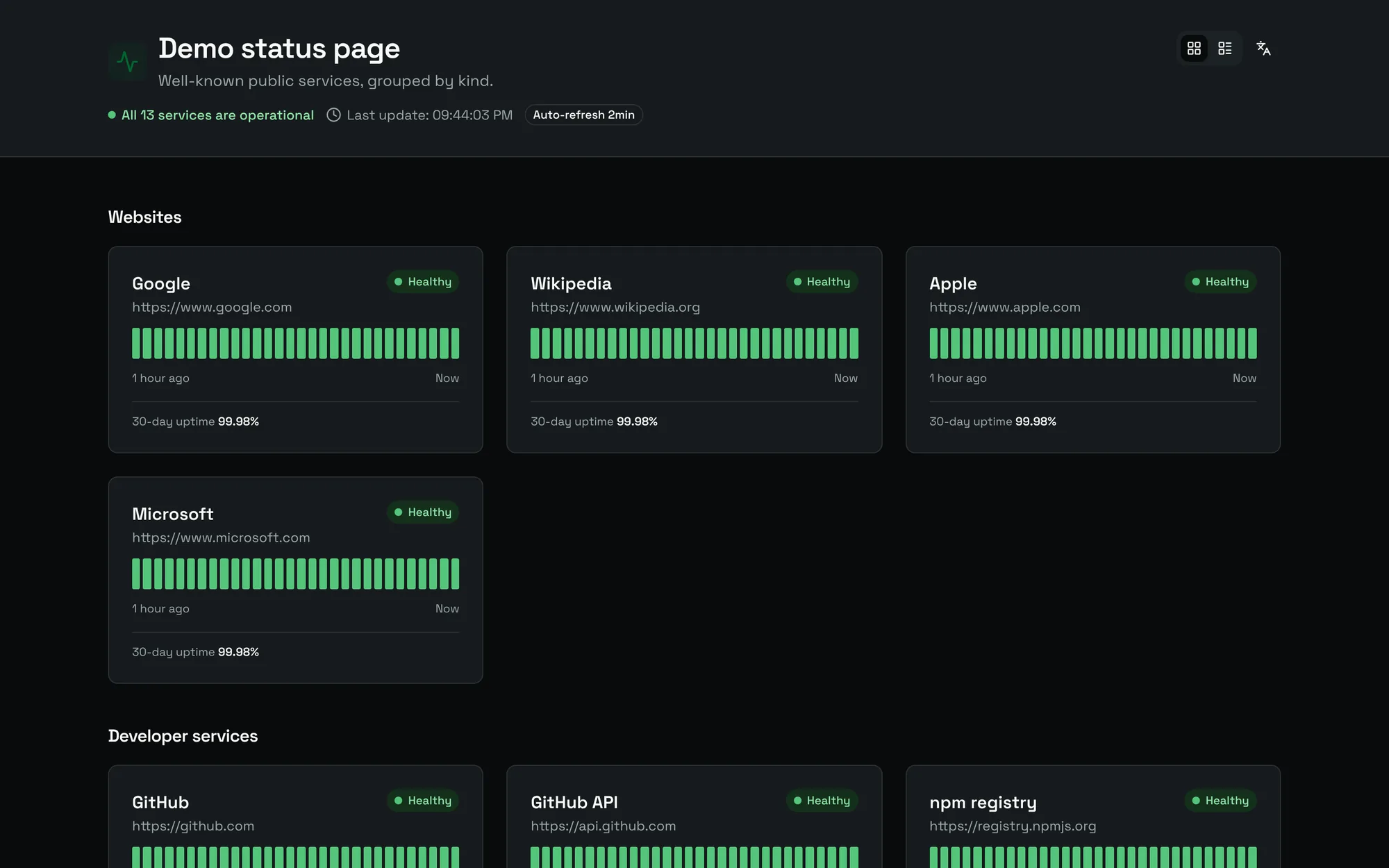
- A verdict at the top: All 13 services are operational, or the number of services with an incident.
- For each monitor, its status, the checks of the last hour and its 30-day uptime.
- Down for and the duration, when a monitor is down.
- The planned downtime of public maintenance windows.
The page refreshes on its own every 2 minutes. Visitors can switch the language and the layout.
Delete a page
Choose the bin icon next to the page. Its address stops answering; the monitors are not affected.