
Notifications / How notifications work
How notifications work
Channels, default channels, the messages sent on failure and recovery, reminders and tests.
A notification channel is a destination for alerts: a Slack channel, a Telegram group, an email address, a webhook. You create channels once, then attach them to your monitors.
Manage your channels
Open your profile menu at the bottom of the sidebar, choose Settings, then Notifications. The list shows each channel with its type.
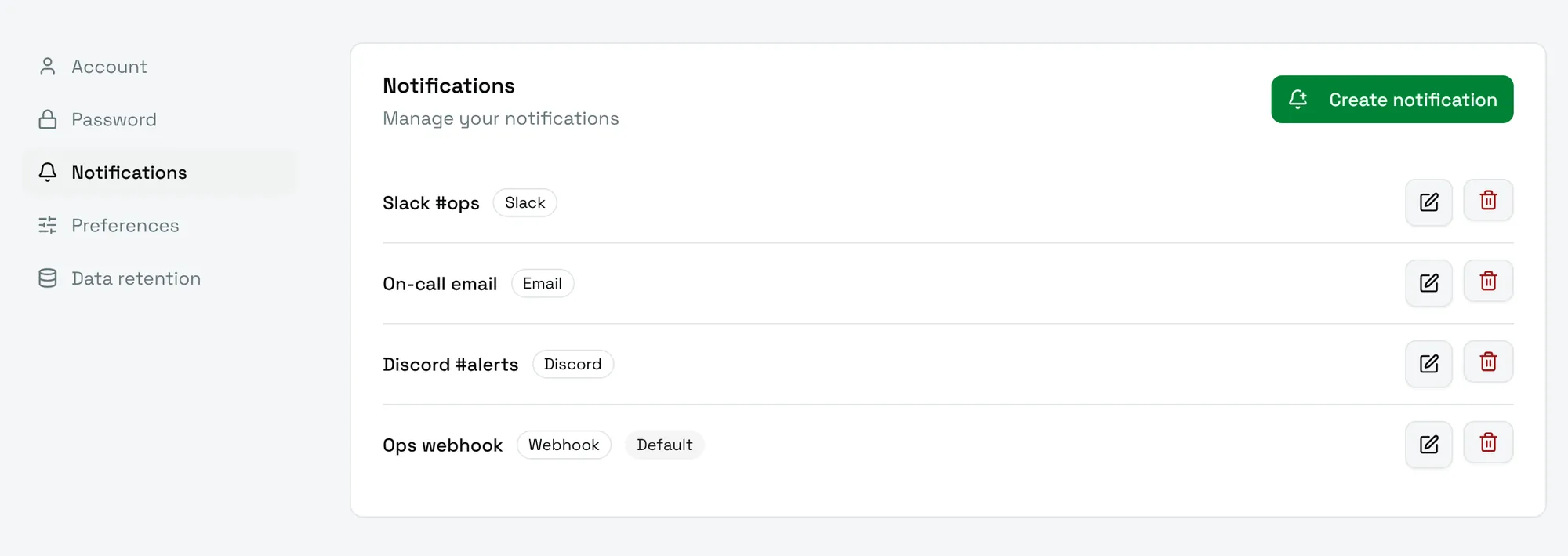
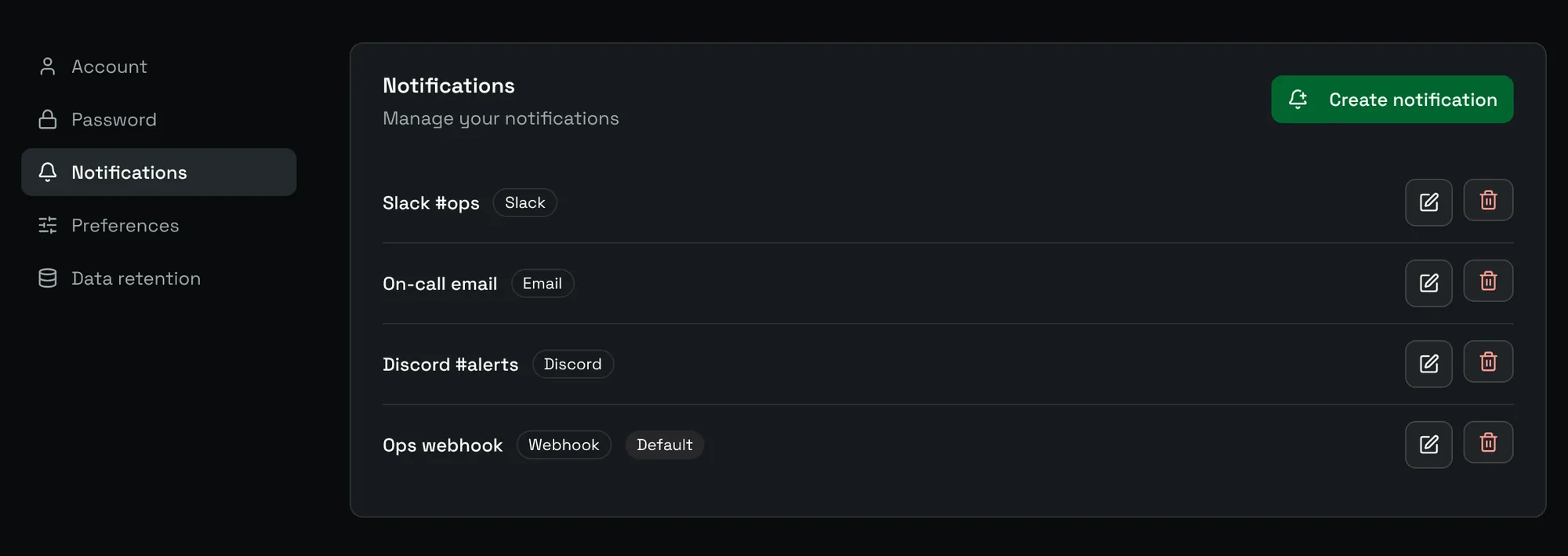
Choose Create notification, pick the Type notification, give the channel a Notification name and fill in the fields of the type:
| Type | Guide |
|---|---|
| Slack, Discord, Microsoft Teams | Chat apps |
| Telegram | Telegram |
| ntfy | ntfy |
| Gotify | Gotify |
| Webhook | Webhook |
Before saving, choose Test notification: Uptime Kotlin sends a test message with the values of the form, so you know the channel works before the first real outage.
Attach channels to a monitor
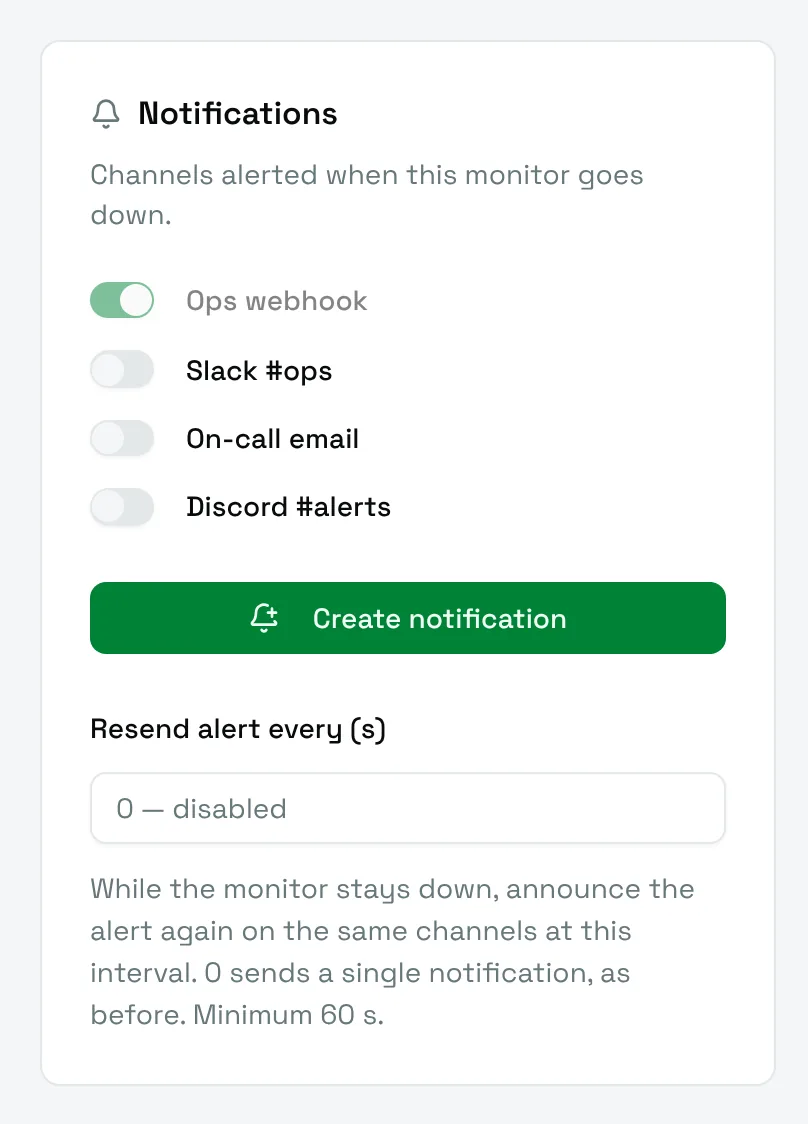
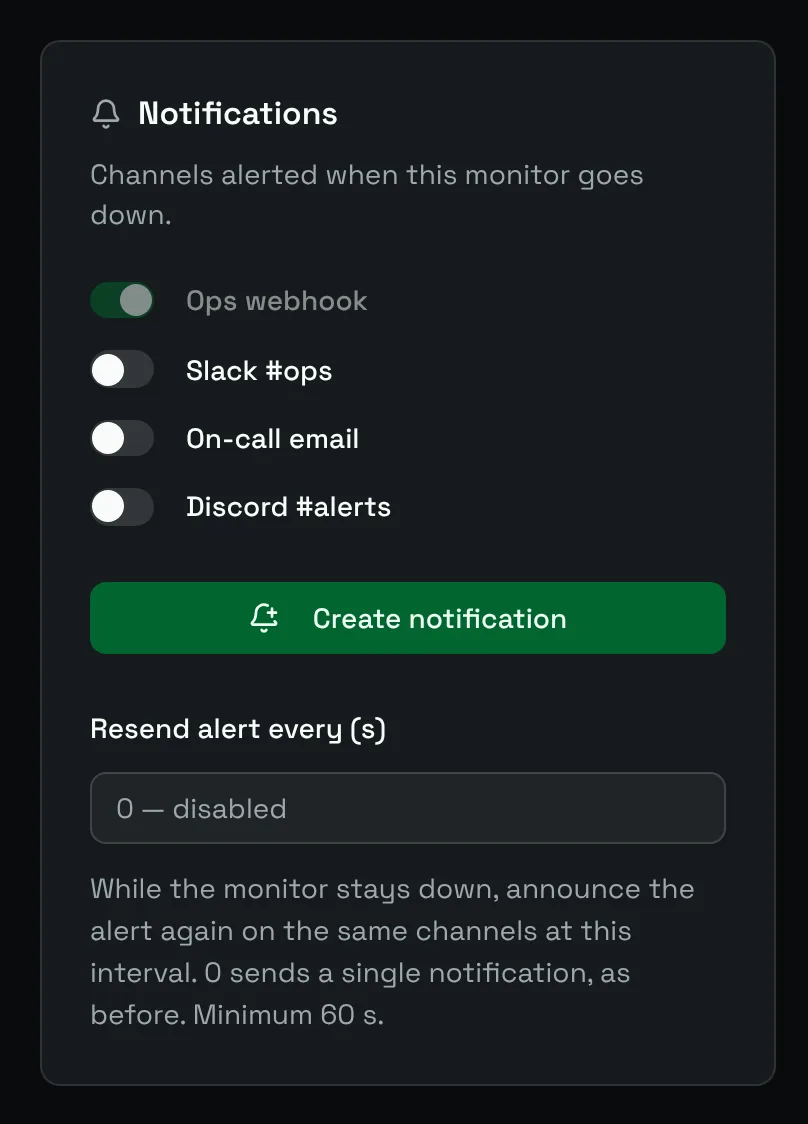
In the form of a monitor, the Notifications card lists every channel. Switch on the ones that should receive the alerts of this monitor.
Default channels
Turn on Have the notification by default on a channel to attach it to every monitor, current and future. Its switch is then always on in the monitor forms. Use it for the channel of your on-call team.
What is sent, and when
A notification goes out when the status of a monitor changes:
- Failure: the monitor goes down, once its retries are exhausted. The message gives the name of the monitor and the error.
- Recovery: the monitor answers again. The message gives how long it was down.
A monitor that stays down does not send a new message at each check. A maintenance window suppresses both messages while it runs.
Remind the team
Resend alert every (s), in the Notifications card of a monitor, sends the alert again on the same channels while the monitor stays down. 0 sends a single notification; otherwise the minimum is 60 seconds.
Reminders stop when the monitor recovers, or as soon as someone acknowledges the incident.
Dates in the messages
Dates in Slack, Teams, Telegram, ntfy, Gotify and email messages follow NOTIFICATIONS_DISPLAY_TIMEZONE (UTC by default, for example Europe/Paris). Webhook payloads stay in UTC. See Configuration.
Secrets
Tokens, passwords and webhook URLs are stored encrypted with your ENCRYPTION_MASTER_KEY. When you edit a Telegram, ntfy or Gotify channel, leave a token field empty to keep the current token.