
Notifications / Send alerts to Slack, Discord or Teams
Send alerts to Slack, Discord or Teams
Create an incoming webhook in your chat app and paste its URL into Uptime Kotlin.
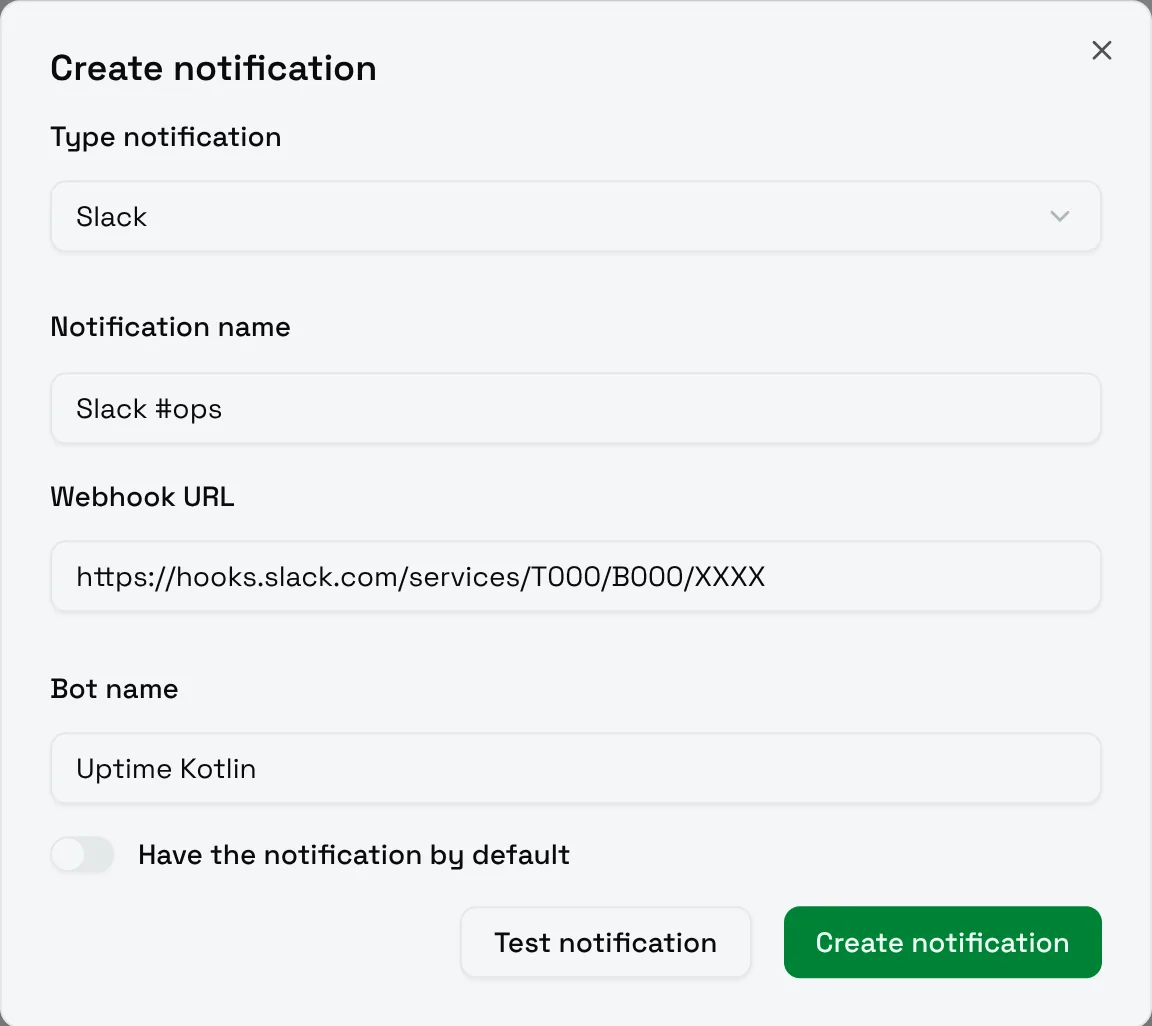
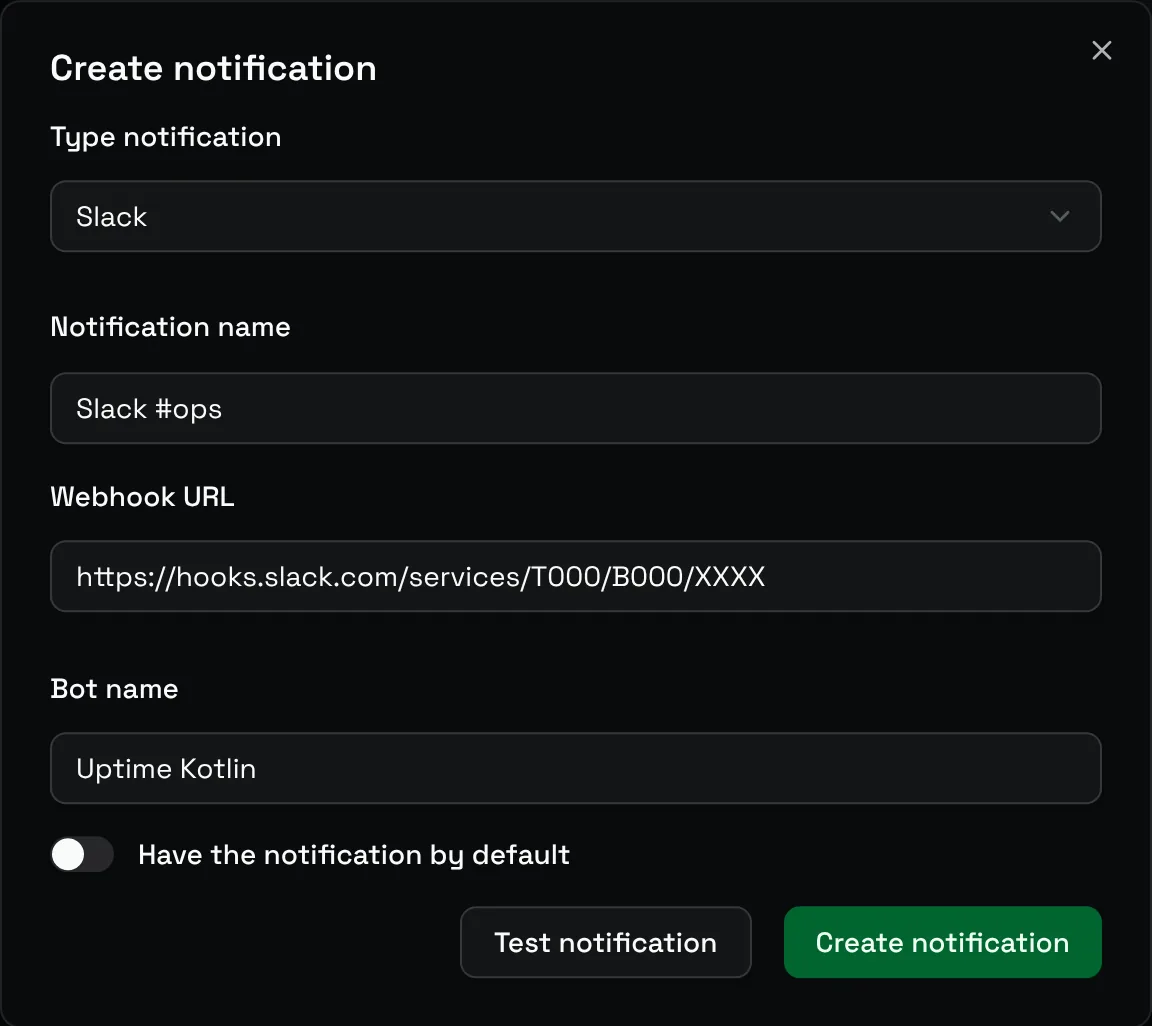
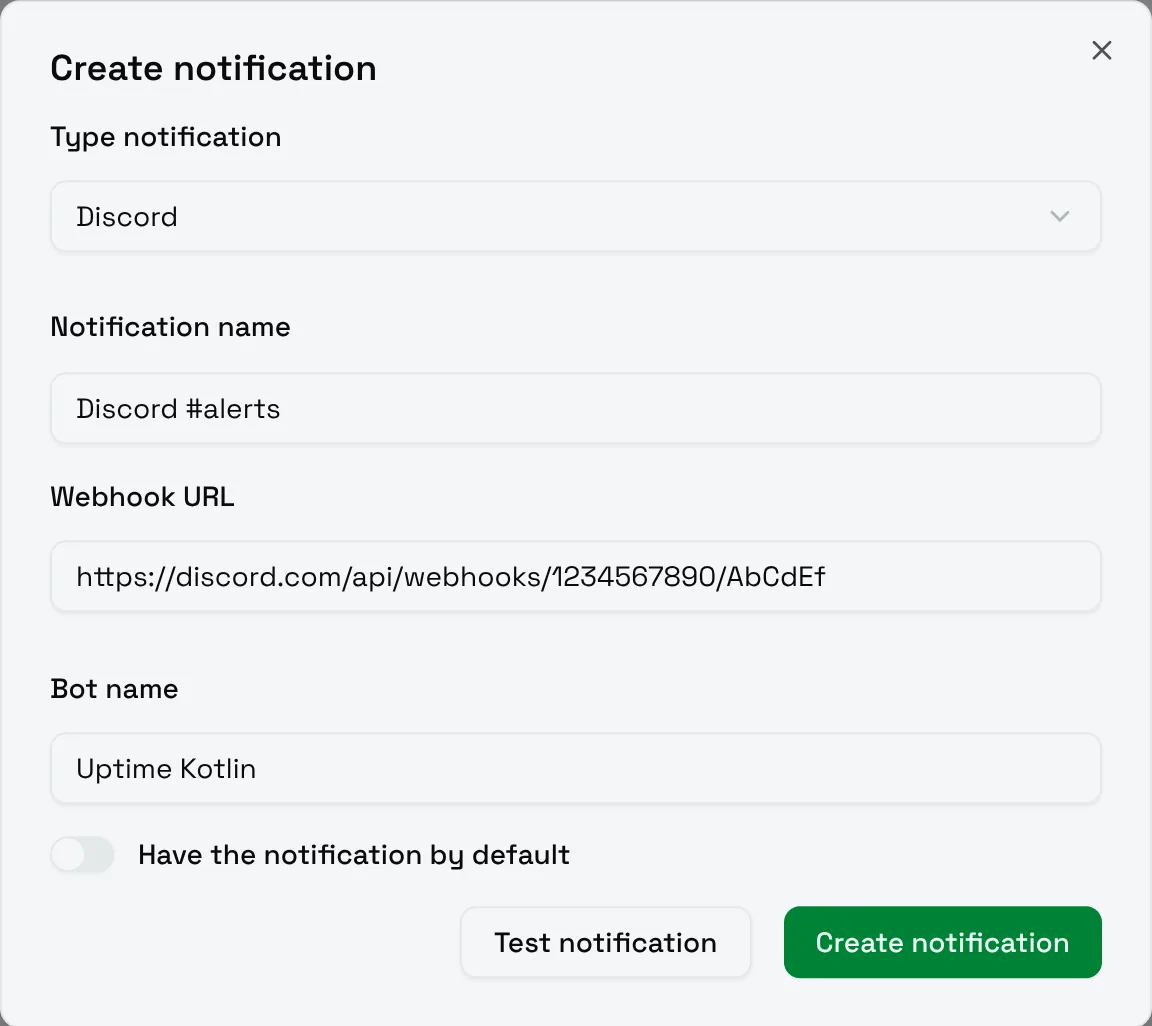
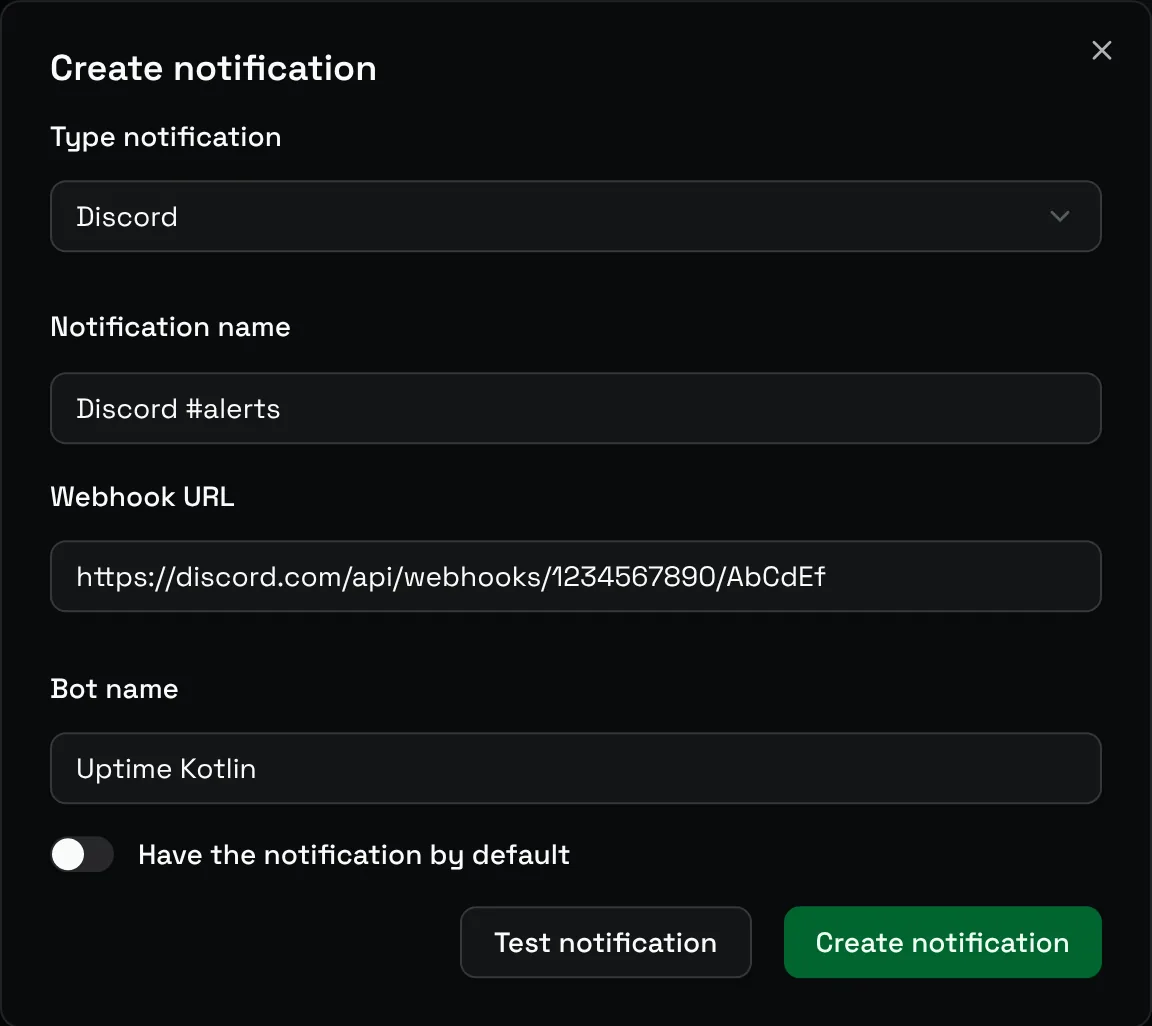
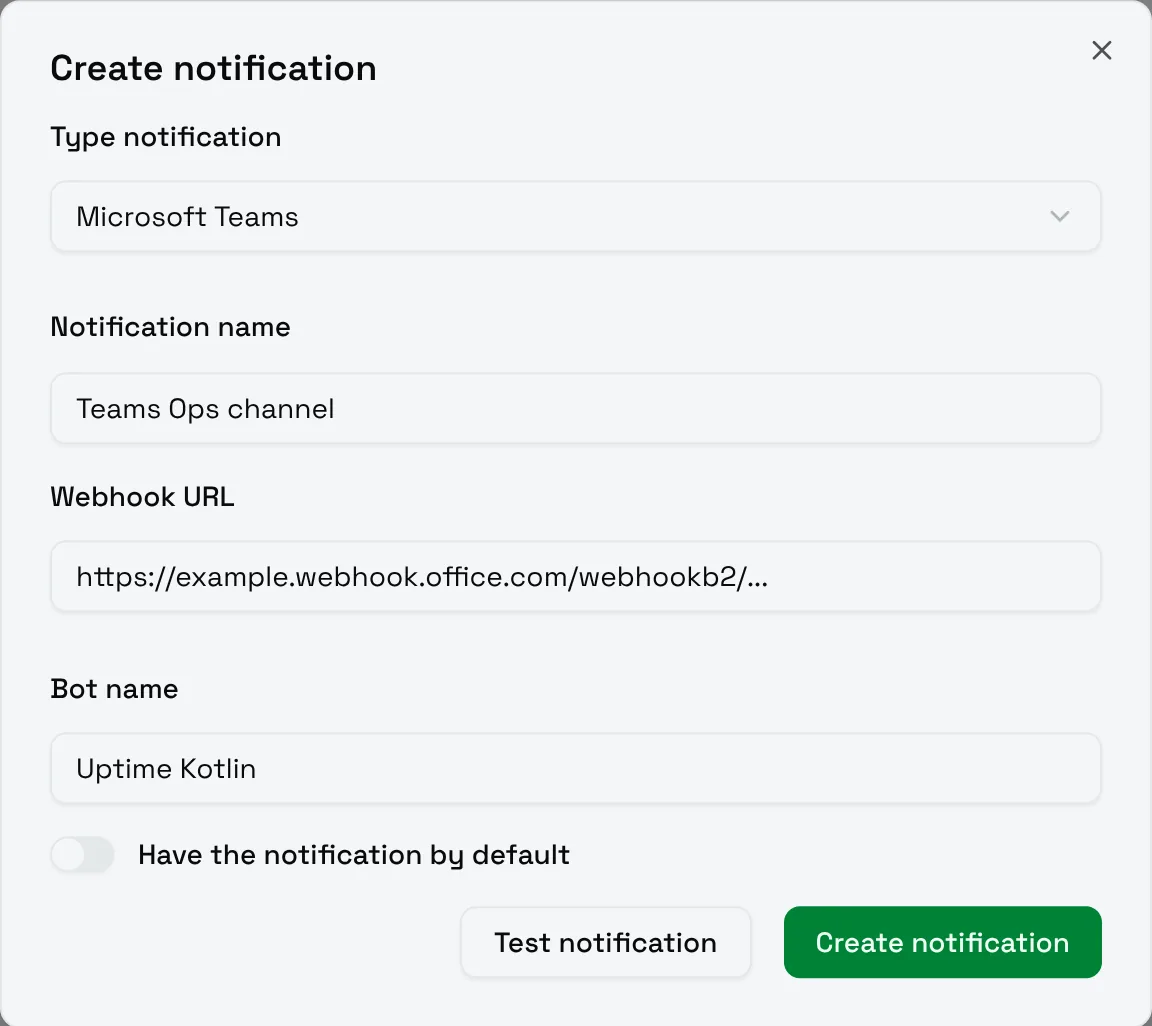
Slack, Discord and Microsoft Teams receive alerts through an incoming webhook: a secret URL that posts in one channel. The three types share the same two fields.
| Field | Meaning |
|---|---|
| Webhook URL | The URL given by the chat app. |
| Bot name | A name for the sender, at least 3 characters, for example Uptime Kotlin. |
Slack
- In Slack, create an app for your workspace and enable Incoming Webhooks.
- Add a new webhook to the channel that should receive the alerts, for example
#ops. - Copy the URL, which starts with
https://hooks.slack.com/services/.
Discord
- In Discord, open the settings of the channel, then Integrations and Webhooks.
- Create a webhook and copy its URL, which starts with
https://discord.com/api/webhooks/.
Microsoft Teams
- In Teams, add an incoming webhook to the channel that should receive the alerts.
- Copy the URL it gives you.
Check the channel
Choose Test notification before Create notification: a test message should appear in the channel within a few seconds. If nothing arrives, check that the URL was copied in full; anyone holding it can post in the channel, so keep it private.