Get started / Read the dashboard
Read the dashboard
What each card of the Uptime Kotlin dashboard shows: monitors up and down, average uptime, response times, failed checks and recent events.
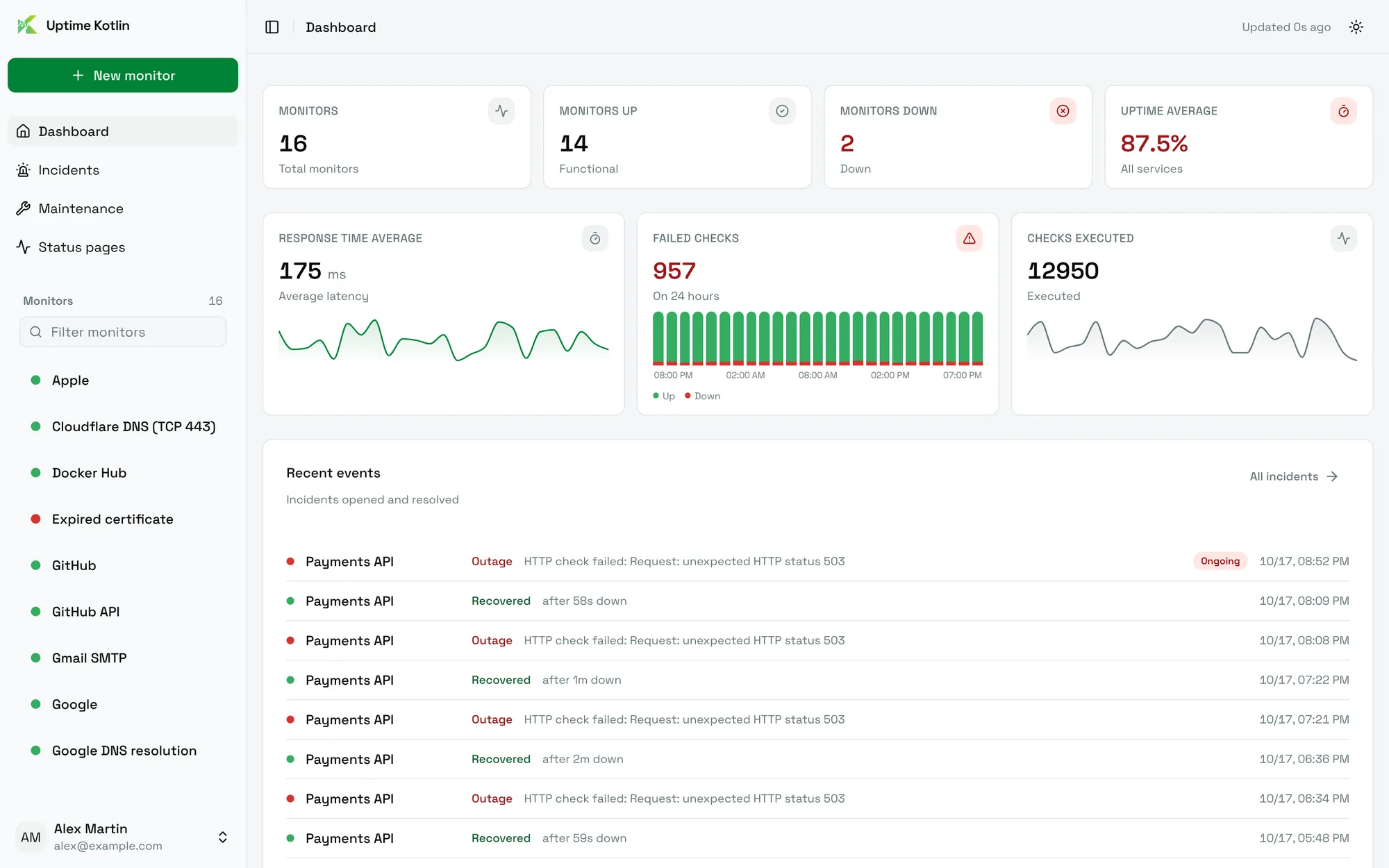
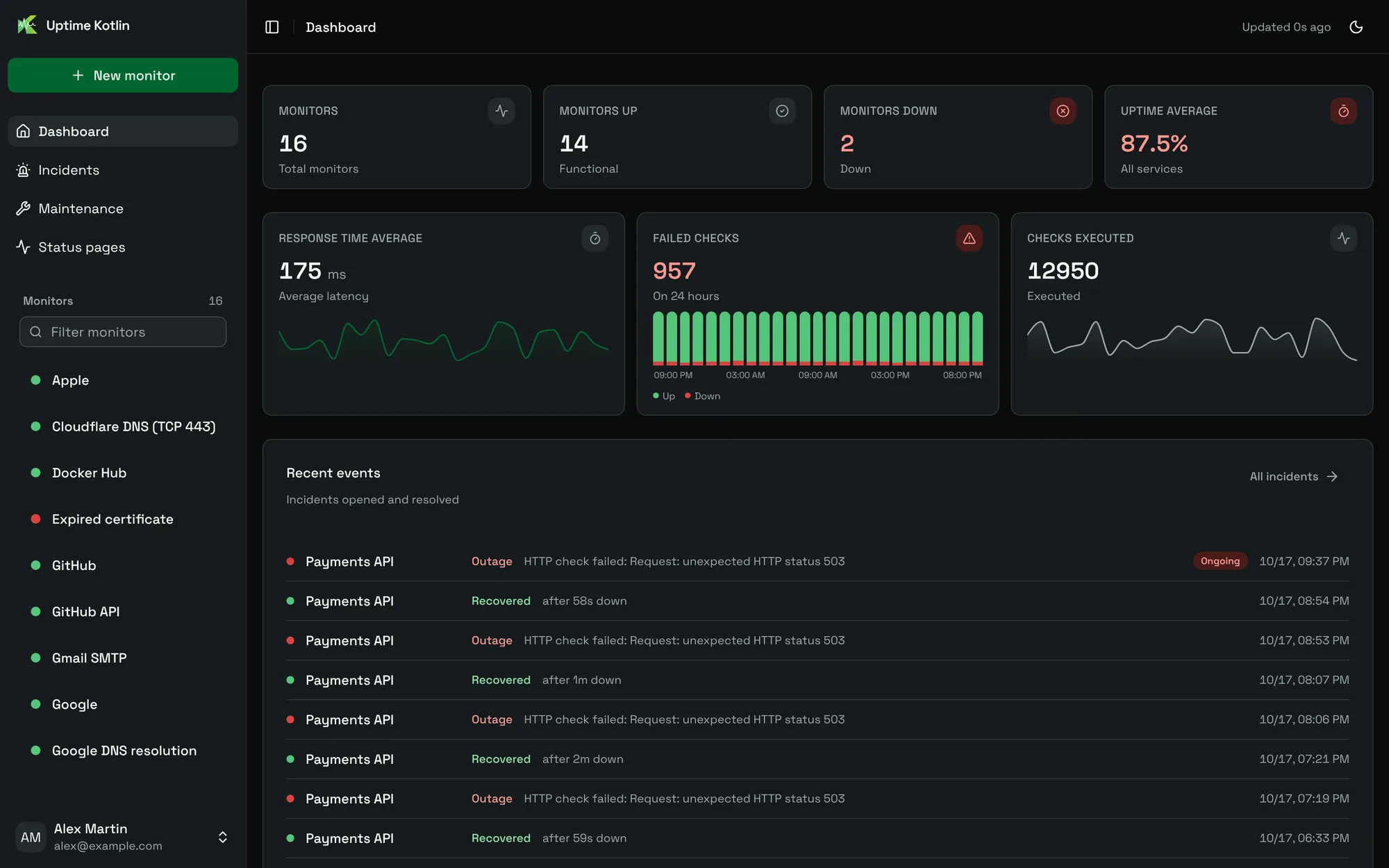
The dashboard is the first page after sign-in. It sums up every monitor in one screen, and refreshes on its own every minute: the indicator at the top right says when the data was last updated.
The counters
| Card | What it shows |
|---|---|
| Monitors | The number of monitors. |
| Monitors UP | Monitors whose last check succeeded. |
| Monitors DOWN | Monitors currently down. |
| Uptime average | The average uptime of all services. |
The charts
- Response time average: the average latency of the checks, hour by hour.
- Failed checks: the checks that failed over the last 24 hours. Each bar is one hour, green for successful checks and red for failed ones.
- Checks executed: how many checks ran over the last 24 hours.
Recent events
Recent events lists the incidents opened and resolved. An Outage line marks the start of an incident, with the error that triggered it; a Recovered line gives how long the service stayed down. An incident still open carries the Ongoing badge.
Choose All incidents to open the Incidents page, with filters and exports.
The sidebar
The sidebar lists every monitor with its status dot. Use Filter monitors to find one by name or description once the list grows. The links above it open the Incidents, Maintenance and Status pages pages.
Your profile menu, at the bottom, opens Settings (account, password, notifications, preferences and data retention), replays the User guide and signs you out.