
Monitors / How a monitor works
How a monitor works
Schedule, retries, statuses and the settings shared by every type of monitor.
A monitor runs one check at a regular interval and keeps every result. This page covers what all monitors have in common. The fields specific to each protocol are in the guides of each family.
Choose a protocol
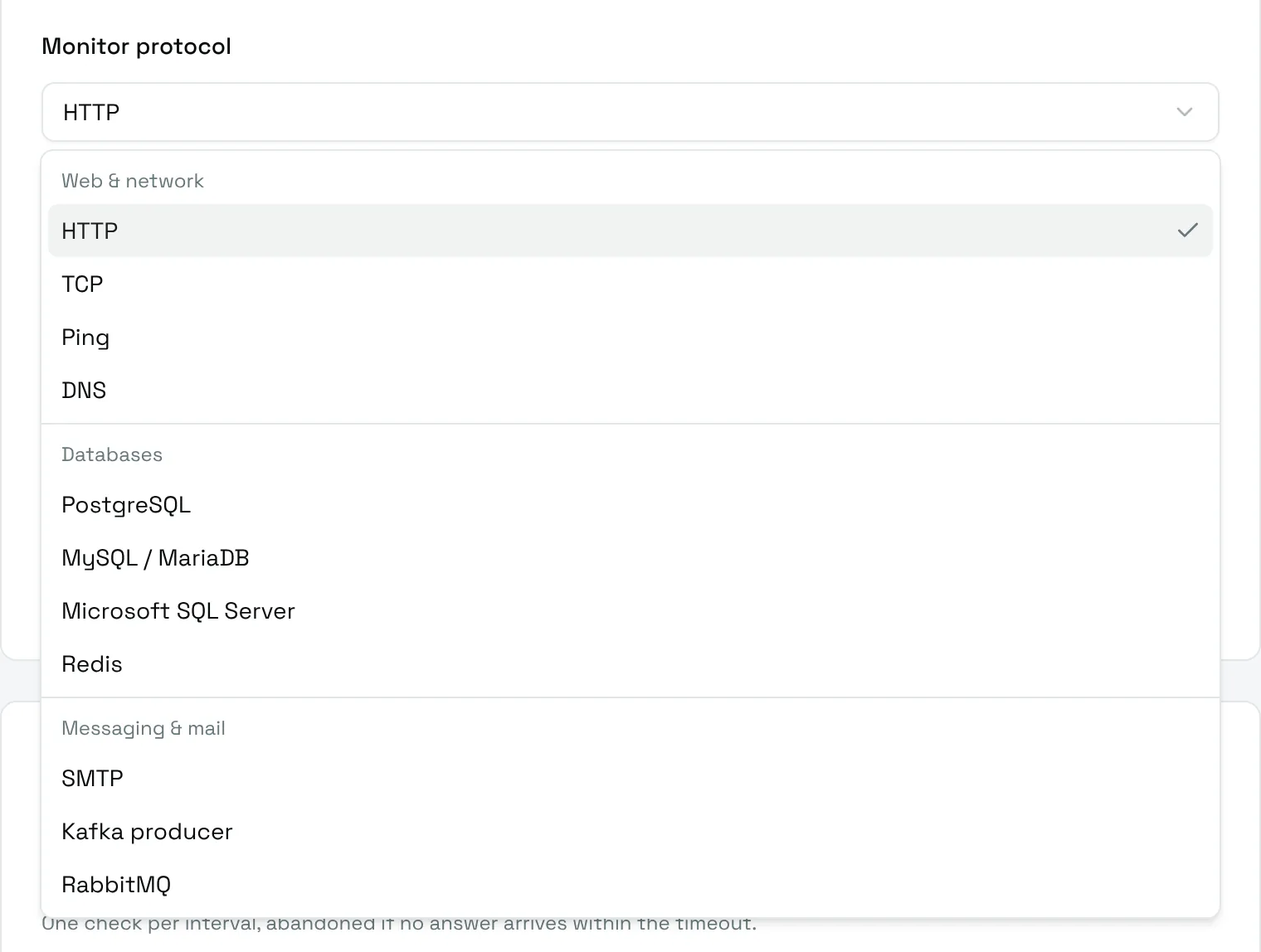
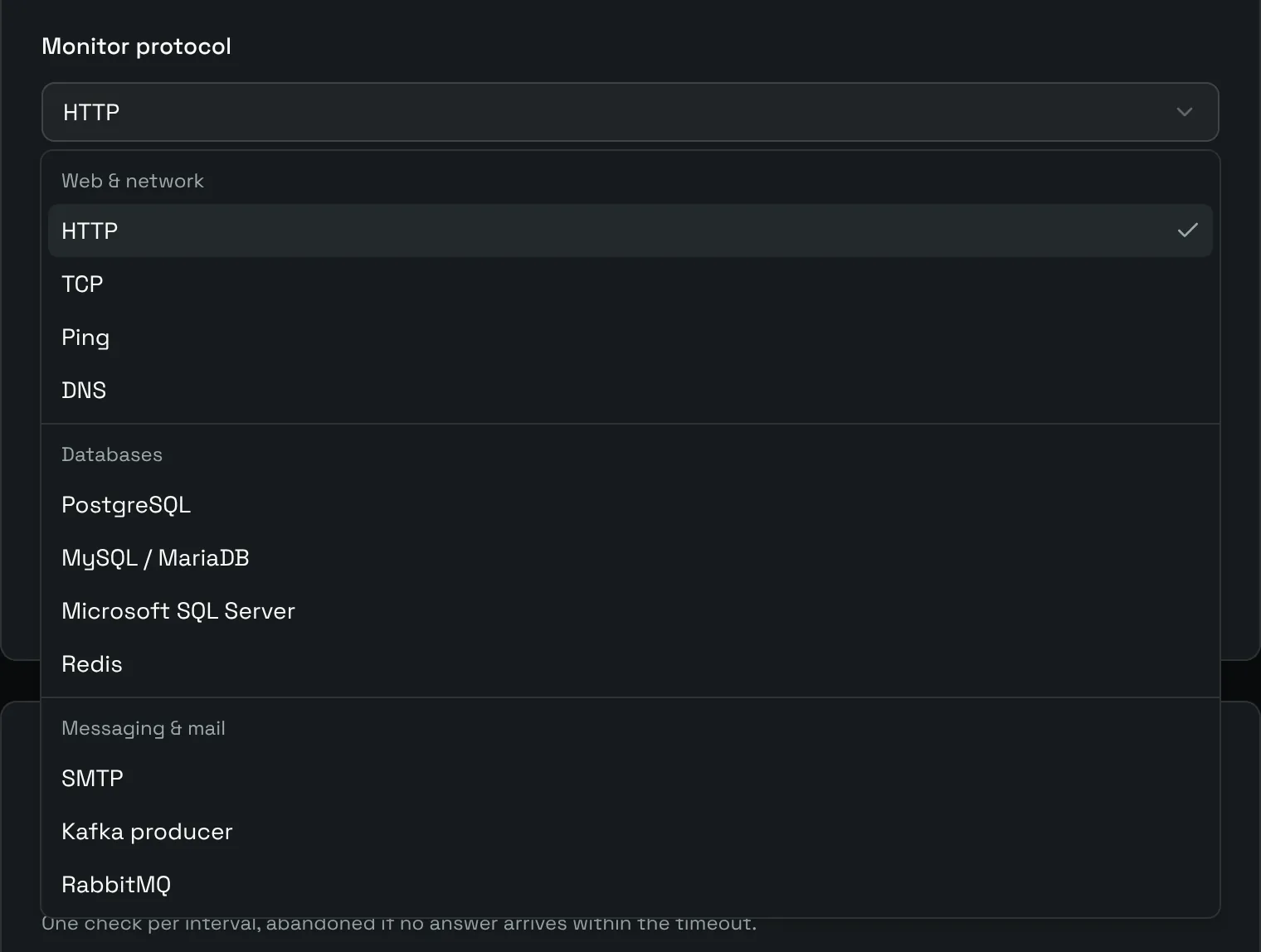
The Monitor protocol list groups the eleven protocols by family. The fields of the What to monitor card change with the protocol you pick.
| Protocol | The check succeeds when | Guide |
|---|---|---|
| HTTP | The URL answers with an accepted status code, fast enough, and the assertions pass. | Websites and APIs |
| TCP | A TCP connection opens on the port. | Network services |
| Ping | Every ICMP echo request gets a reply. | Network services |
| DNS | The DNS server returns a record of the chosen type. | Network services |
| PostgreSQL, MySQL / MariaDB, Microsoft SQL Server | The query runs. | Databases |
| Redis | The command runs. | Databases |
| SMTP | The SMTP handshake succeeds. No email is sent. | Messaging |
| Kafka producer | A message is produced on the topic. | Messaging |
| RabbitMQ | Every management node reports no alarm. | Messaging |
Set the schedule
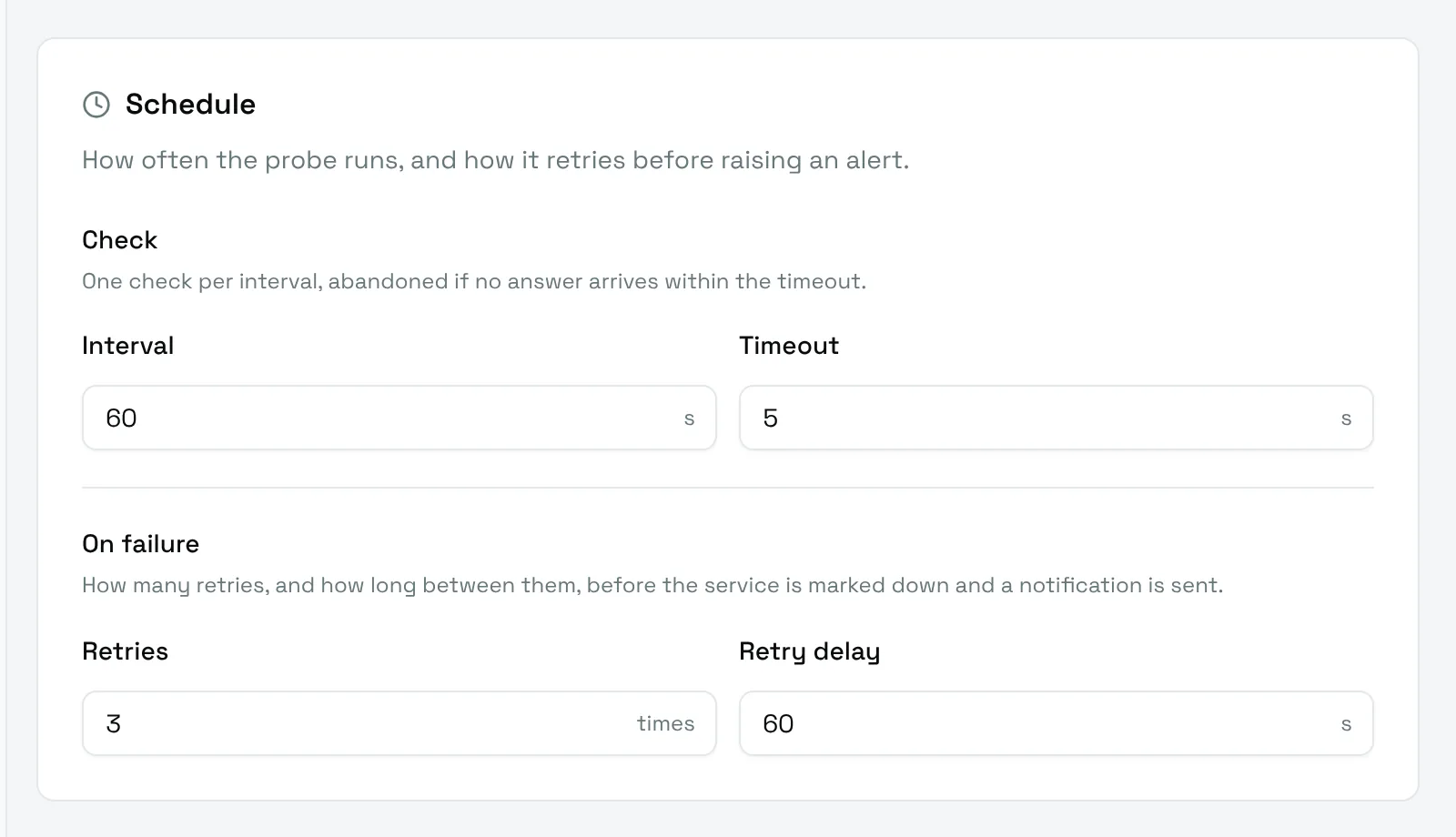
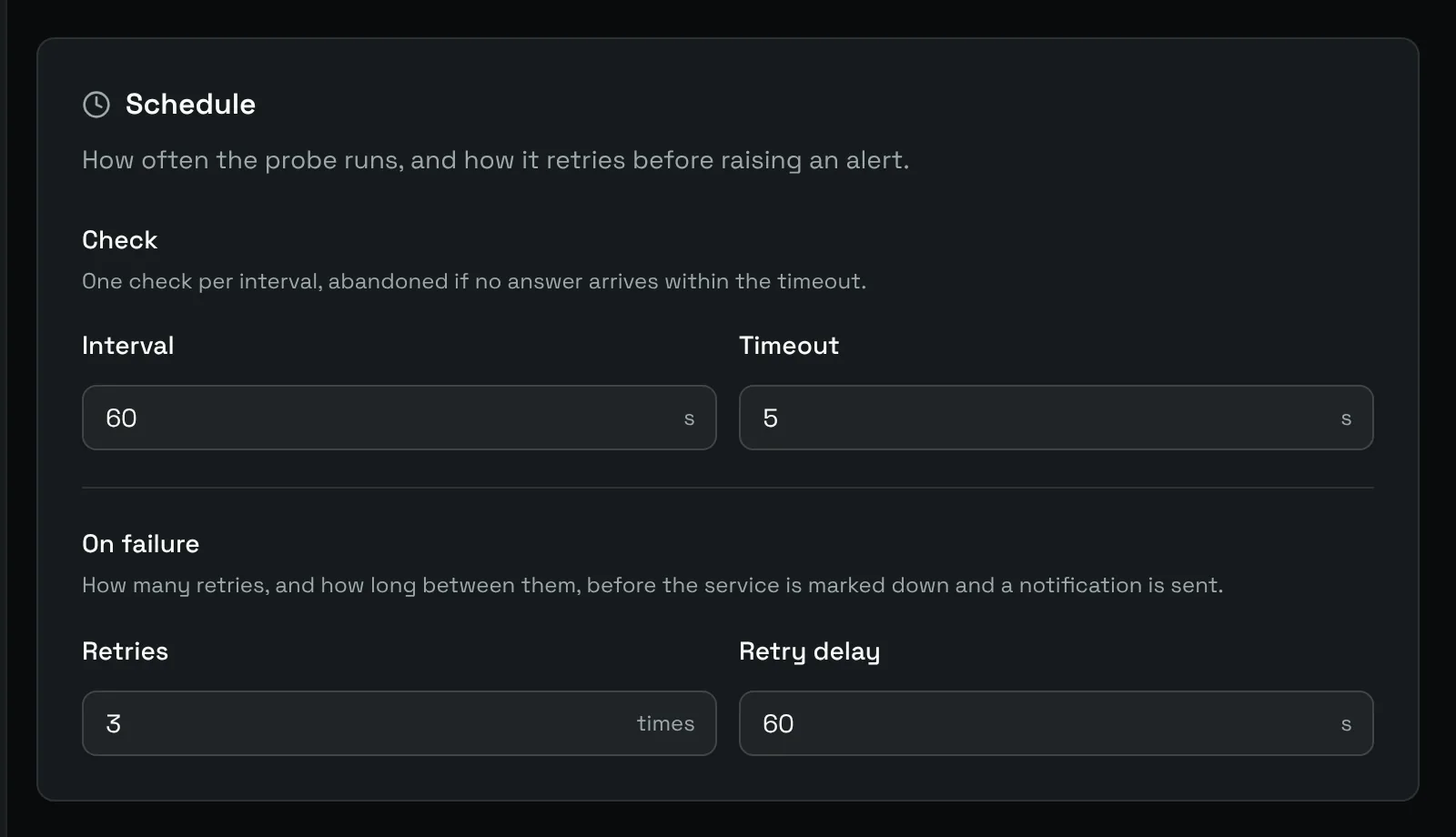
The Schedule card decides how often the check runs and how patient Uptime Kotlin is before raising an alert.
| Field | Default | Range | Meaning |
|---|---|---|---|
| Interval | 60 s | 10 to 3600 s | Time between two checks. |
| Timeout | 5 s | 1 to 120 s | A check without an answer after this delay fails. It must be shorter than the interval. |
| Retries | 3 | 1 to 10 | Checks run again after a failure before the monitor is marked down. |
| Retry delay | 60 s | 1 to 3600 s | Time between two retries. |
Understand the statuses
Each check gives one of these statuses, shown in the logs and on status pages:
- Healthy: the check succeeded.
- Degraded: the check failed but retries are left, or a ping lost some packets. No alert is sent yet.
- Unhealthy: the check still fails after the last retry. The monitor is down: an incident opens and the notifications go out.
- Paused: the monitor is disabled and runs no check.
Retries protect you from an alert for a single lost request. With the default schedule, a service has to fail for a few minutes in a row before you hear about it. Lower the retries for a critical service, raise them for a flaky one.
Common settings
The Settings card holds the options that do not depend on the target.
- Enabled: switch it off to pause the monitor. A paused monitor keeps its history but runs no check, and its open incident closes.
- Keep history for: how long the results of this monitor are kept. Default follows the instance setting described below.
- Description: a free text, searched by the Filter monitors field of the sidebar.
HTTP monitors add their own settings to this card: see Monitor a website or an API.
Keep the history
Results older than the retention are deleted every night at 03:30. The default retention of the instance is set in Settings, under Data retention, and each monitor can override it with Keep history for.
The retention is at least 30 days, so that the 30-day uptime stays accurate, and at most 3650 days. Forever keeps everything. Before shortening the history, Uptime Kotlin tells you how many results the next nightly purge will delete.
Duplicate, pause or remove
The More actions menu of a monitor page offers:
- Maintenance: start a maintenance window for this monitor right away.
- Duplicate: open a new form filled with the same settings. Nothing is created until you save, so adjust the target first.
- Remove: delete the monitor and all its data. Type its name to confirm.
To pause a monitor, edit it and switch off Enabled.